 HOREF LABS
Horef Pulse 1.9.9 · User guide
Horef Pulse user guide
Step by step: install, connect your AI agent, read the menu screens, bars, charts and dials, choose what the menu bar shows, answer quit proposals, free up disk space, see what takes the space on any disk, get warned when it runs low, uninstall apps, check for app updates, see system information and network speed, add desktop widgets and control the fans. The same guide, without the pictures, opens inside Horef Pulse: click ? at the bottom of the menu.
Эта инструкция по-русски · המדריך בעברית · About Horef Pulse · Support
- Install
- The menu
- Connect Claude Code
- Other AI tools and scripts
- Quit proposals
- Processes started by AI
- Free up space
- What takes the space
- When the disk runs low
- Uninstall apps
- Updates
- System information
- Desktop widgets
- Fan control (beta)
- Terminal
- Access from your iPhone
- Troubleshooting
- Remove Horef Pulse
1. Install
- Download Horef Pulse 1.9.9 (macOS 14 or later, Apple silicon and Intel).
- Open the downloaded file. A window with Horef Pulse and the Applications folder appears.
- Drag Horef Pulse onto Applications.

- Open Horef Pulse from Applications. macOS says it was downloaded from the internet: click Open. The app is notarized by Apple.
- A gauge icon with the current load appears in the menu bar at the top right. Horef Pulse has no Dock icon and no window: everything is in that menu.
- Leave Open at login on (bottom of the menu), so the AI always has fresh data.
2. The menu
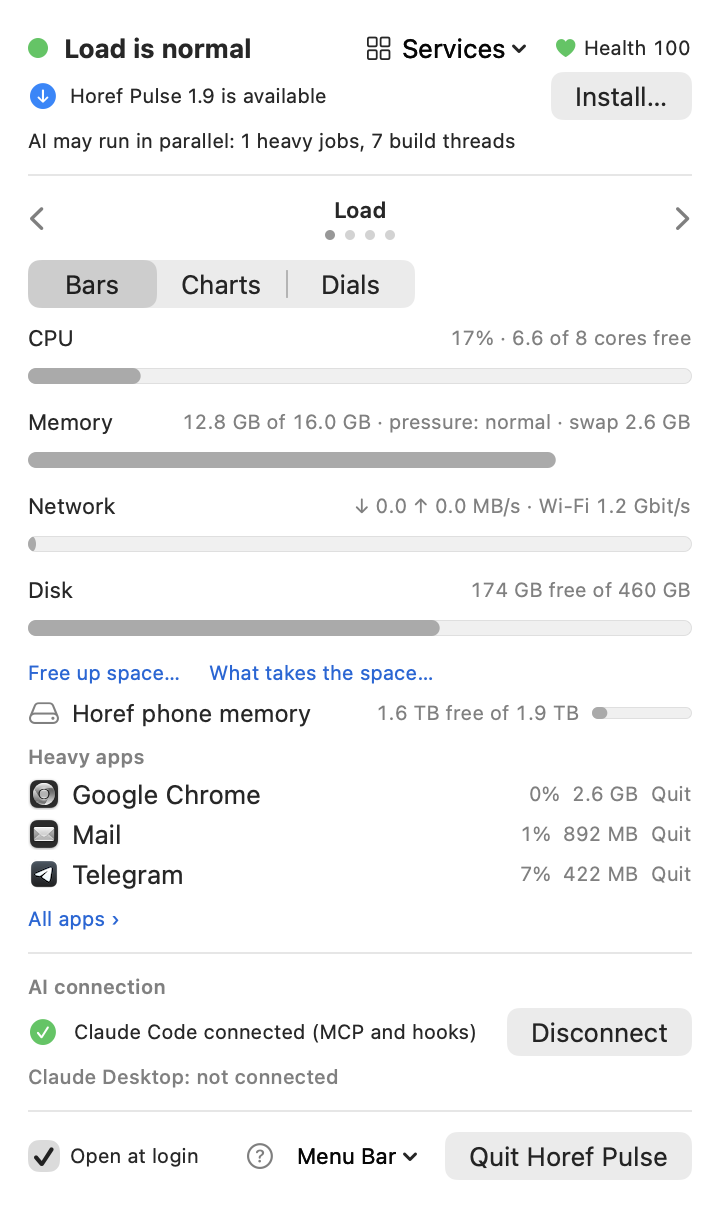
Click the icon in the menu bar. The menu has four screens: Load, System, Apps and Log. Flip between them with the arrows ‹ › at the top or the ← → keys; the dots show where you are, and the menu opens on the screen you looked at last. The status line, the AI connection and the buttons at the bottom are on every screen.
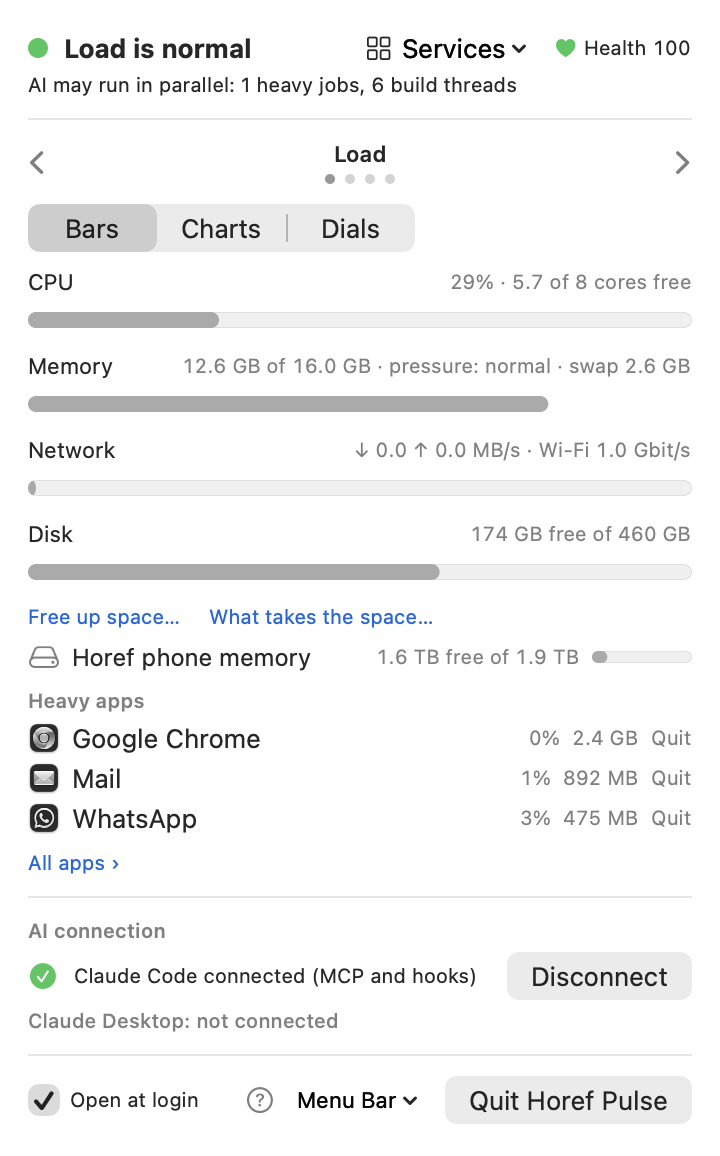
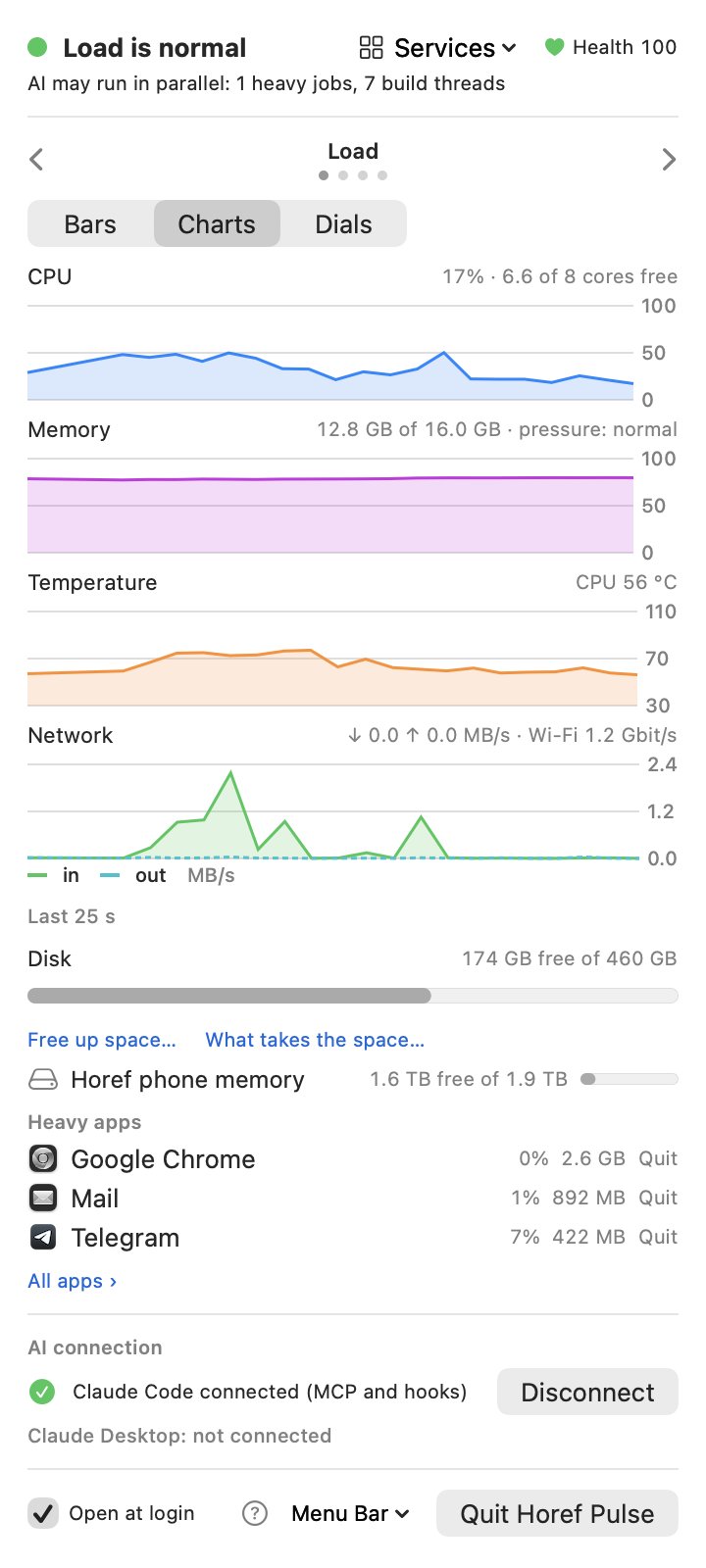
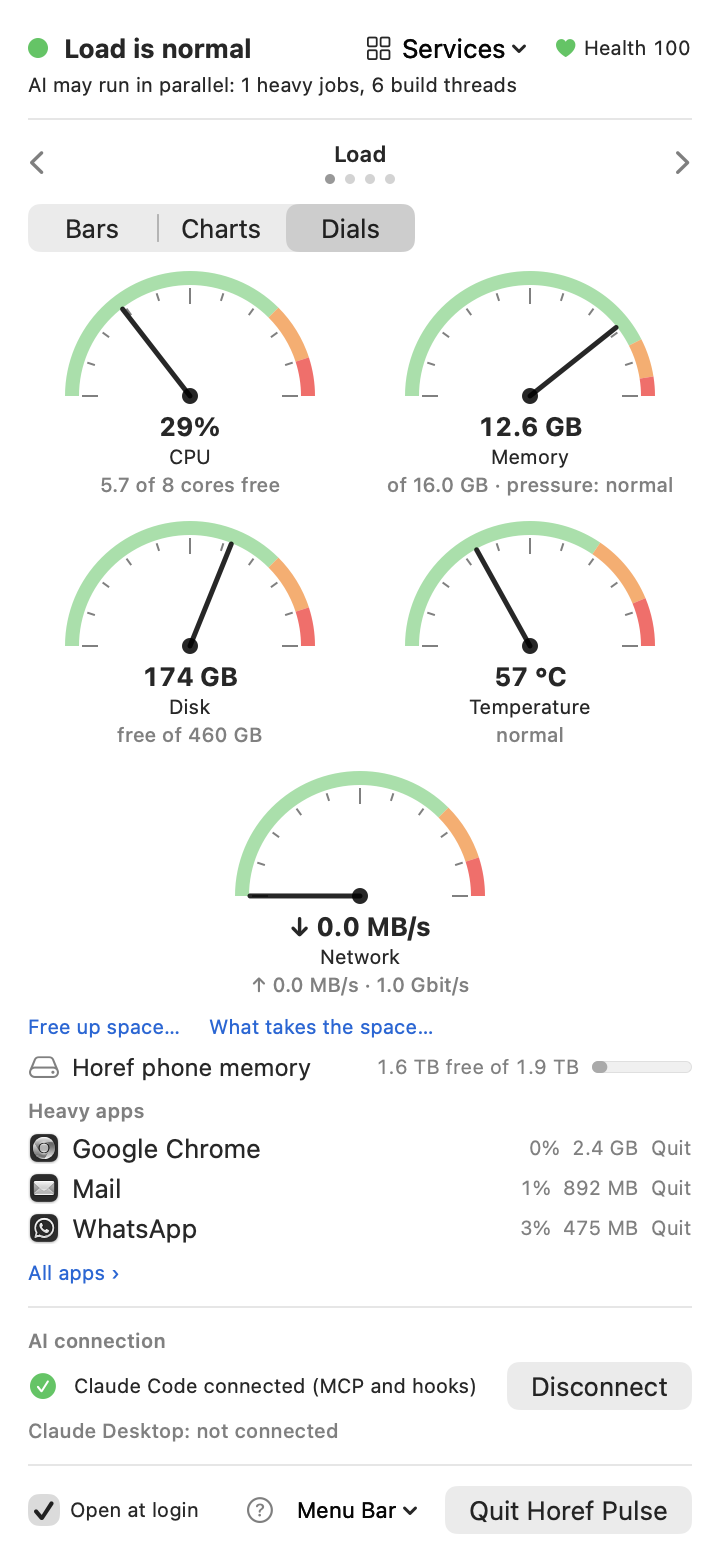
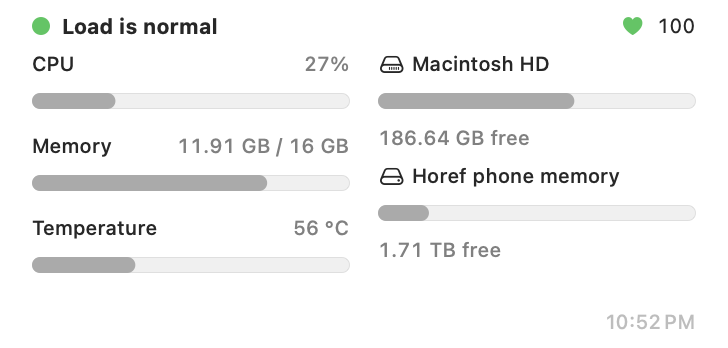
On the Load screen choose how to see the numbers: Bars, Charts of the last 10 minutes, or Dials with a needle and green, orange and red zones. The charts start empty when Horef Pulse starts and say how much time they cover.
The menu bar shows the CPU load next to the gauge by default. To see more without opening the menu, click Menu Bar at the bottom of the menu and tick what you want there: CPU, Memory, Temperature, Disk (free space), Network (↓↑ MB/s), Power (watts) and Health. Each value gets its own small icon; they always appear in this order. Tick only what you need: menu-bar space is short, especially on a Mac with a notch.

In the same pull-down choose how they appear: Together, one item (as above) or Each separately — then every chosen value is its own item in the menu bar, and a click on any of them opens the menu. ⌘-drag an item out of the menu bar to untick it. Network traffic shows out ↑ over in ↓, as numbers or as moving bars of the last ~40 seconds.



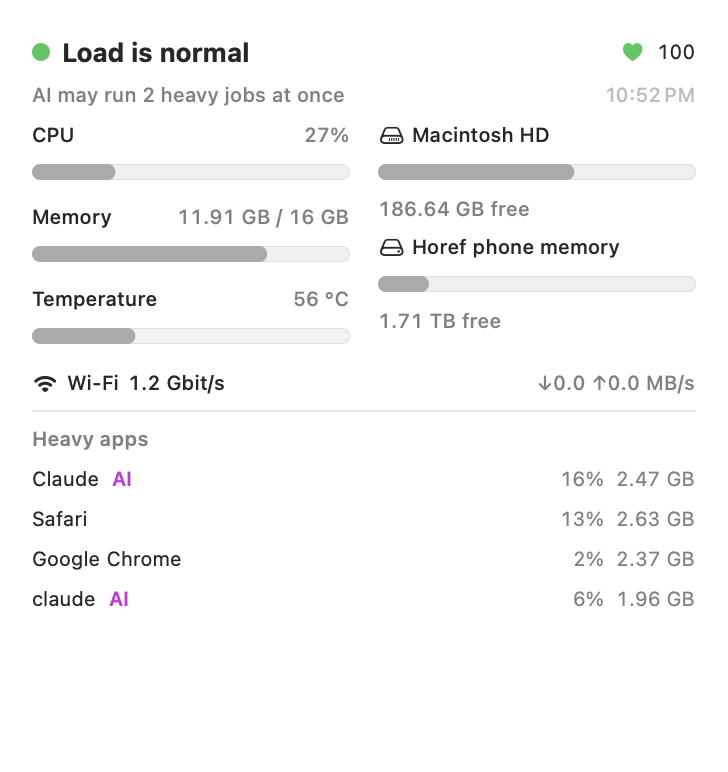
- Status line — Load is normal (green), Mac is busy (yellow), Mac is overloaded (orange) or Critical load (red), why, and how many heavy jobs and build threads the AI may run now.
- Health — one number from 0 to 100. 100 means nothing is wrong; points are taken off for a busy CPU, memory pressure, swap, a nearly full disk, heat, hung processes and processes that keep a core busy for minutes. Hover over it to see what took points off.
- Load: CPU, Memory, Disk — how much is used, memory pressure and swap. Memory pressure matters more than “used”: macOS fills free memory with cache, so the memory dial turns orange only at 85%. Network traffic is there too, against the speed of the connection. Free up space… opens the cleanup window (section 7), What takes the space… the disk analysis (section 8). Attached drives are listed under the disk with their free space; a click analyses that drive.
- System screen — temperatures, power, battery, network and disk speed, fans (section 12), and zombie processes when there are any.
- Heavy apps — on the Load screen, the three apps that use the most and can be quit, each with Quit; All apps › opens the Apps screen with six, where AI tools are marked AI and have no Quit button. Quit closes an app normally; it asks about unsaved documents itself. Right-click Quit and choose Force Quit for an app that hangs: it stops at once, with its helpers, and unsaved documents are lost.
- Started by AI — builds, tests and servers that AI agents started, with a stop button (section 6). Shown only while there are some.
- Busy for minutes — processes that have kept a CPU core at 80% or more for 5 minutes: often a stuck build, a runaway test or an app spinning in a loop. A process an AI started has a stop button. Shown only while there are some.
- Services — at the top of every screen: Free up space, What takes the space, Uninstall an app, App updates, the System, Apps and Log screens and this guide, one click away.
- Uninstall an app… and App updates… — also on the Apps screen: remove an app together with its files (section 10), see which apps have a newer version (section 11).
- Horef Pulse X is available — shown at the top when a newer Horef Pulse is out; Install… updates it (section 11).
- Log screen — what was stopped, quit, cleaned, removed, kept or proposed, and by whom.
- ? — at the bottom of the menu: this guide, inside the app.
- AI connection — whether Claude Code and Claude Desktop are connected; Connect / Disconnect.
3. Connect Claude Code
- Install Claude Code if you have not.
- In the Horef Pulse menu, under AI connection, click Connect.
- Wait until it says Claude Code connected (MCP and hooks) with a green check.
- Start a new Claude Code session. Sessions that were already open do not see the new tools.
- Check: in a terminal run
claude mcp list— the list showshoref-pulseas connected. Or ask Claude: “What is the Mac load right now?”
What Connect does: links the hofpulse command into ~/.local/bin, registers the MCP server horef-pulse for all your projects, adds a hook to ~/.claude/settings.json and, if Claude Desktop is installed, adds the server to its config. Every file is backed up first with the suffix .bak-hofpulse. Restart Claude Desktop to pick it up.
From then on the AI gets a short note before heavy steps when the Mac is busy, and can call these tools:
system_status— level, reasons, recommended parallel jobs and build threads, heaviest processes, temperatures and fans.wait_for_capacity— wait until the Mac has room.kill_ai_process— stop its own stale processes.suggest_quit_appsandsuggestion_result— ask you to quit apps and read your answer.disk_report— what takes the disk.cleanup_preview,suggest_cleanupandcleanup_result— see what could be cleaned, ask you to clean it (section 7) and read the outcome. The AI never deletes anything itself.uninstall_preview,suggest_uninstallanduninstall_result— see installed apps and what an app left behind, ask you to remove it (section 10) and read your answer.disk_volumesanddisk_usage— the disks, and for any of them what takes the space, what grew lately, what can simply be removed, what is yours to decide and what must not be deleted by hand (section 8).list_processesandaction_history— the heaviest processes, and what was stopped, quit and cleaned.
The hook stays silent while the load is normal and repeats itself at most every 10 minutes, unless the level changes.
4. Other AI tools and scripts
Any MCP client (Cursor, Codex, Claude Desktop and others): add a stdio server with the command ~/.local/bin/hofpulse and the argument mcp. In a terminal or a script:
hofpulse status          # one line: level, CPU, memory, disk, temperature
hofpulse jobs            # how many heavy jobs may run at once
hofpulse threads         # build threads to use
hofpulse wait --level busy && make -j$(hofpulse threads)
hofpulse sensors         # temperatures, power, battery, fans (JSON)
hofpulse disk            # what takes the disk
hofpulse clean           # what could be cleaned, with sizes (removes nothing)
hofpulse uninstall Zoom  # what removing an app would take away (removes nothing)
hofpulse du              # what takes the space on the startup disk (removes nothing)
hofpulse du --volume "My Drive"   # the same on an attached drive
hofpulse watch           # the load as one JSON line every few seconds
hofpulse history         # what was stopped, quit and cleaned
5. Quit proposals
When an AI agent needs more room, or the Mac stays overloaded for 30 seconds, a small panel appears with the heaviest apps that are not AI tools and the agent’s reason.
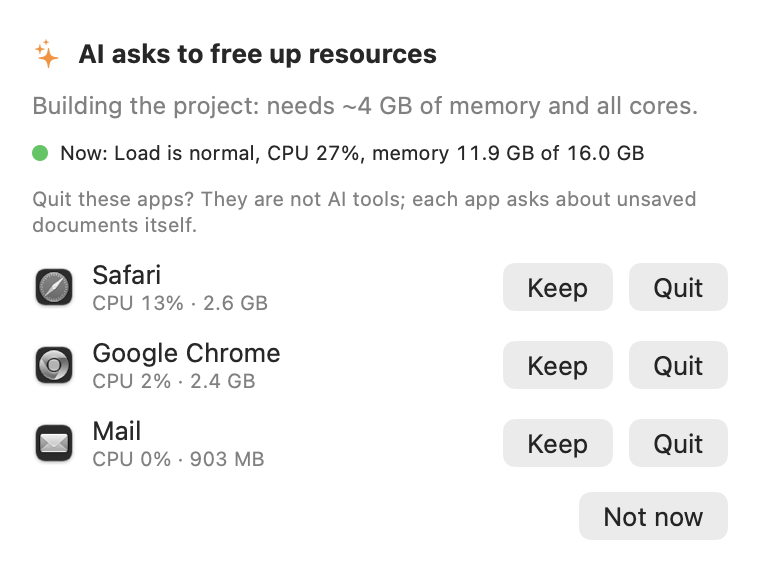
- Quit — the app quits normally and asks about unsaved documents.
- Keep — not proposed again for an hour.
- Not now — closes the panel without quitting anything.
A headless iOS Simulator has no window to quit; Quit on Simulator shuts down all simulator devices; Force Quit stops their processes at once, also when a simulator is hung and will not shut down.
An app that is still running a few seconds after Quit is usually waiting for an answer in one of its windows (save, print), sometimes a hidden one. Horef Pulse then says it did not quit and offers Force Quit; anything unsaved in it is lost.
6. Processes started by AI
Builds, tests and dev servers that an AI agent started are listed on the Apps screen under Started by AI with a stop button. The agent itself may stop only its own processes and orphaned ones, never another live session’s work, never your apps, never AI tools or macOS. Every stop is logged on the Log screen.
7. Free up space
Click Free up space… under the disk in the menu. Horef Pulse measures what can be removed safely and shows each item with its size and what happens after removing it.
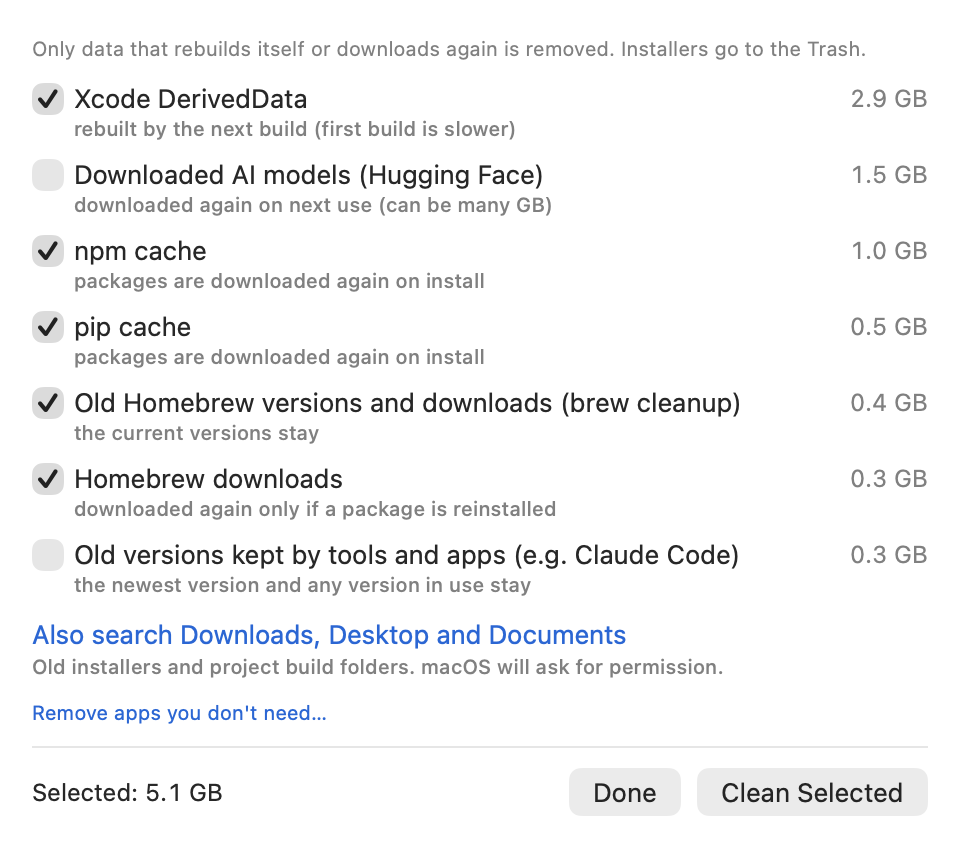
- Caches — Xcode DerivedData, simulator caches, Swift packages, CocoaPods, Homebrew, npm, Yarn, pip, Go and Gradle. They rebuild themselves or download again.
- Simulators of removed iOS versions — deleted with Xcode’s own command.
- Project build folders —
node_modulesnext topackage.jsonand.buildnext toPackage.swift, in projects not changed for 7 days. - Old installers — .dmg, .pkg and similar files in Downloads and on the Desktop. They go to the Trash, not deleted.
- Temporary files older than 3 days, logs and crash reports older than 30 days, and unfinished downloads (.crdownload, .part) in Downloads.
- Old versions — what
brew cleanupremoves, device symbols of all but the two newest iOS/watchOS versions, simulator runtimes you no longer use, older copies of an app installed twice, and old version folders that tools keep (for example Claude Code). A version in use right now is never offered. - Not checked by default — downloaded AI models, old simulator runtimes, older app copies and old tool versions: large, but take long to get back or may be kept on purpose.
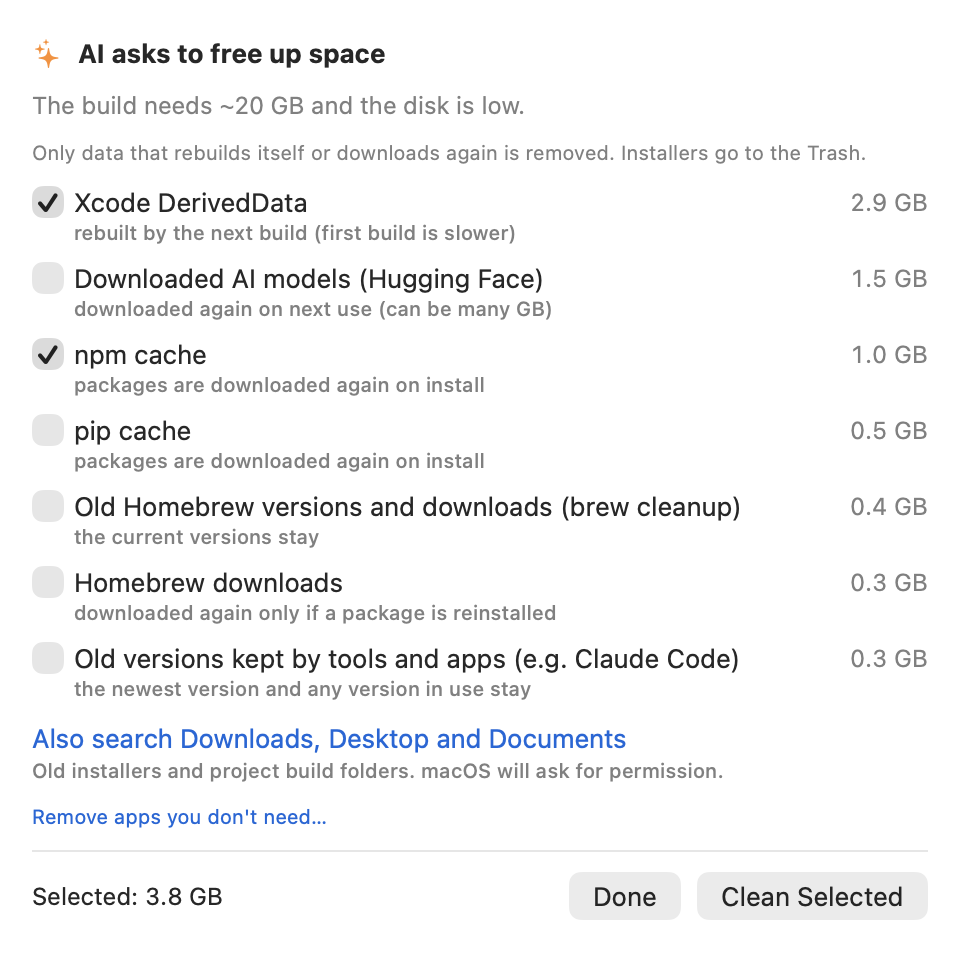
An item whose tool is running right now (for example Xcode for DerivedData) is skipped and says why. Check what you want, click Clean Selected and Horef Pulse shows how much was freed.
Downloads, Desktop and Documents. macOS protects these folders, so Horef Pulse does not look there until you click Also search Downloads, Desktop and Documents. macOS then asks you to allow access.
When an AI asks. An AI agent can see the same list and ask you to clean, but it can never delete anything itself. Its request opens this window with its reason and its picks checked; you change the checkboxes or click Done to clean nothing. The AI learns what you cleaned and how much space was freed.
8. What takes the space
Click What takes the space… under the disk in the menu, or an attached drive's row. Horef Pulse scans the disk (half a minute to a minute for a typical Mac) and shows three tabs. Pick another disk at the top: attached USB, Thunderbolt and SD drives are listed too.
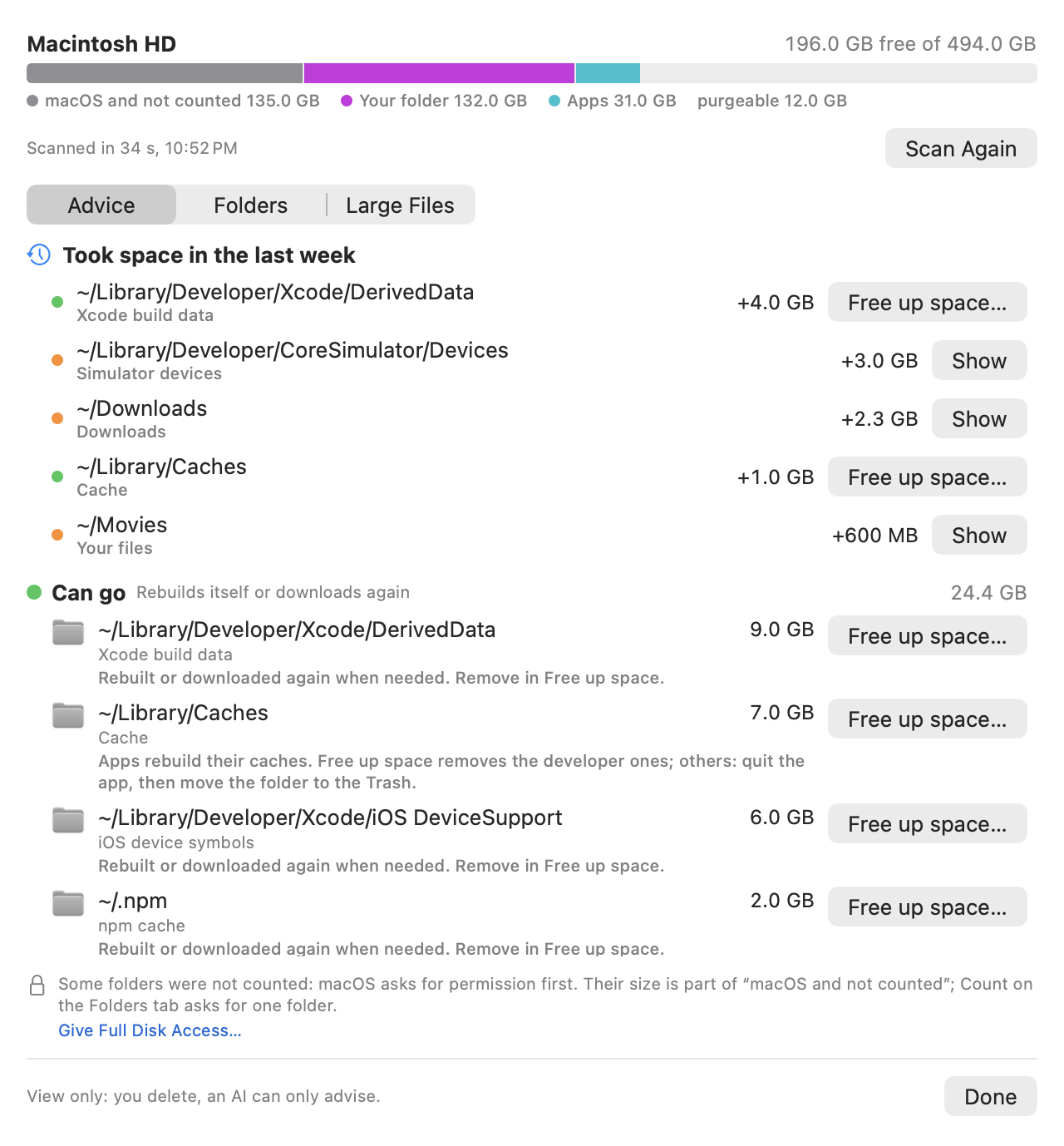
- Advice — first what took space lately, then the big items in three groups: Can go (green: caches, build data, the Trash, installers — they rebuild or download again), Yours to decide (orange: your files, apps, iPhone backups, simulators, virtual machines) and Do not delete by hand (grey: macOS, app data, the Photos and Music libraries, Mail, iCloud Drive and cloud drives, Time Machine). Each says what it is and the proper way to free it, with a button: Free up space, Uninstall an app, Show in Finder or System Settings.
- Folders — the disk as a tree; click › to go inside.
- Large files — files over 200 MB with their date; show one in Finder or move it to the Trash (not offered for files inside libraries or app data).
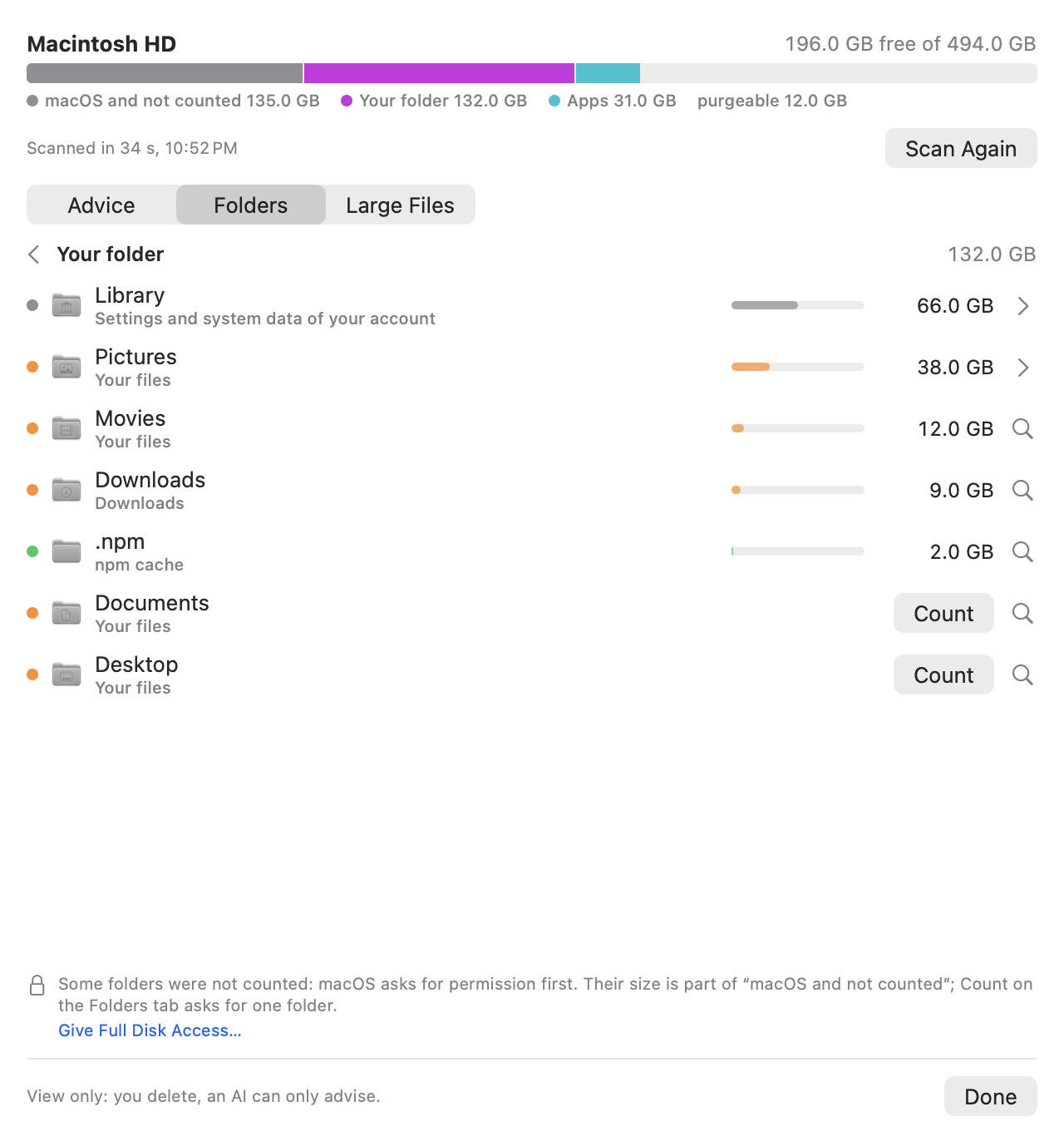
Protected folders. macOS asks before an app looks into Desktop, Documents, Downloads, app containers and iCloud Drive, so those are listed as not counted and their size is part of “macOS and not counted”. Click Count next to one to let macOS ask for it, or give Horef Pulse Full Disk Access (the link at the bottom) to see everything.
Ask your AI. “What takes the space on my Mac?” or “what is on my external drive?”: the agent calls disk_usage and answers with the same groups — what can simply go, what is yours to decide, what must not be deleted — and how. It never deletes anything; it can ask you through Free up space or Uninstall.
9. When the disk runs low
When less than 15 GB is free on the startup disk, a panel appears: how much is left, how much more was used in the last week, what took the space lately and how much can go without loss. Free up space… and What takes the space… are one click away. It comes back after 6 hours, at once below 5 GB. Your AI agent is told too and can show you the same.
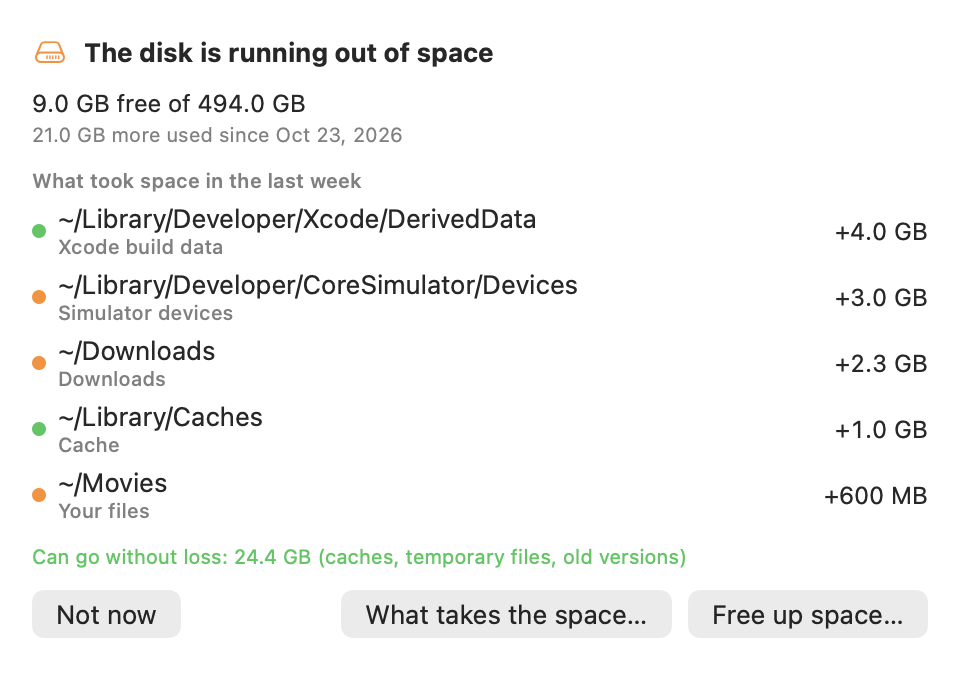
“Lately” compares with a scan from about a week ago; until there is one, it counts files created or changed in the last 7 days. The folder named is the one you know: an app, one app's data or cache, the simulator devices, a folder of yours.
10. Uninstall apps
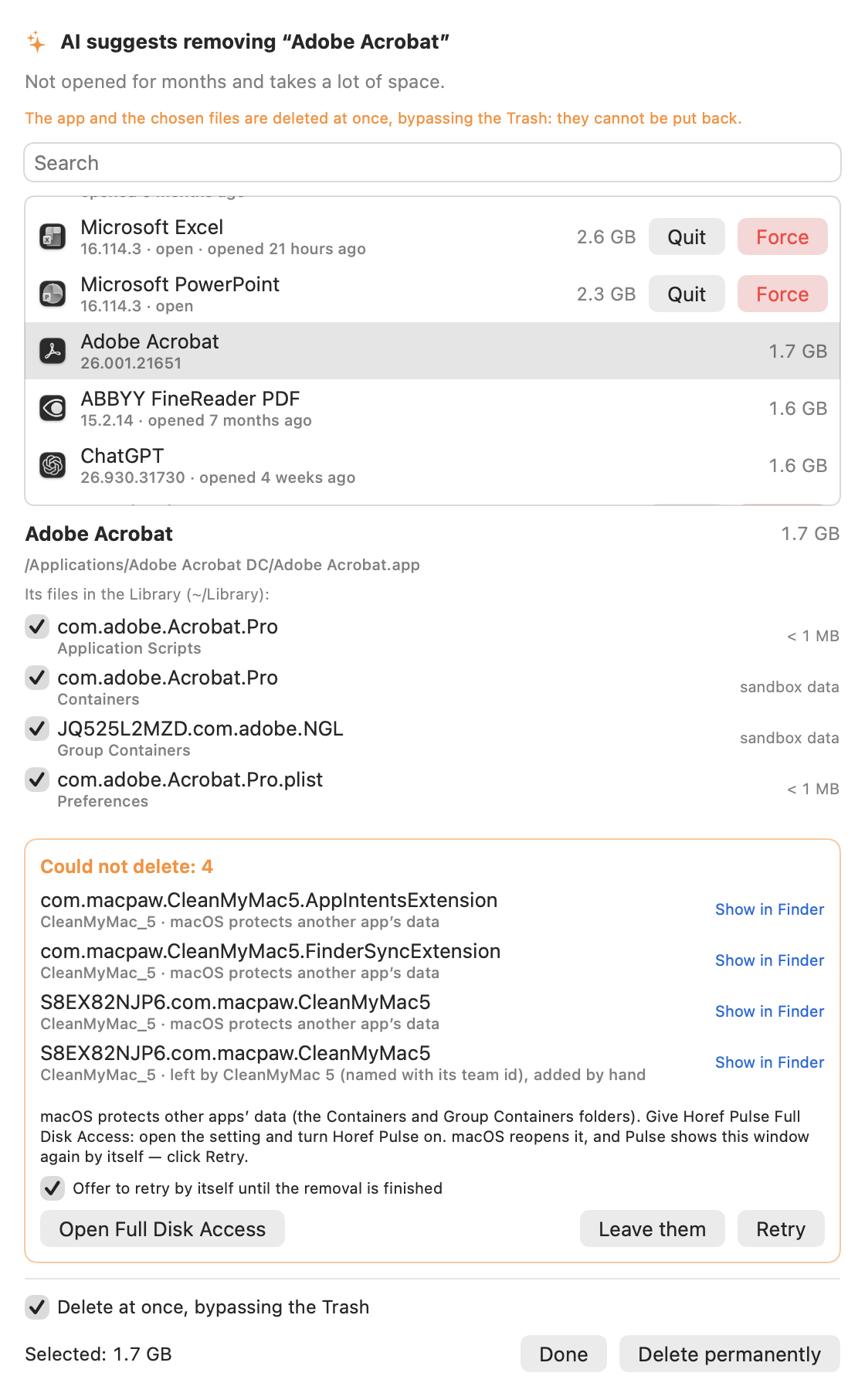
On the Apps screen click Uninstall an app… (also in the Free Up Space window). The window lists the apps in Applications, largest first, with version, whether the app is open and when you last opened it. Safari, which is part of macOS, and Horef Pulse itself are not listed.
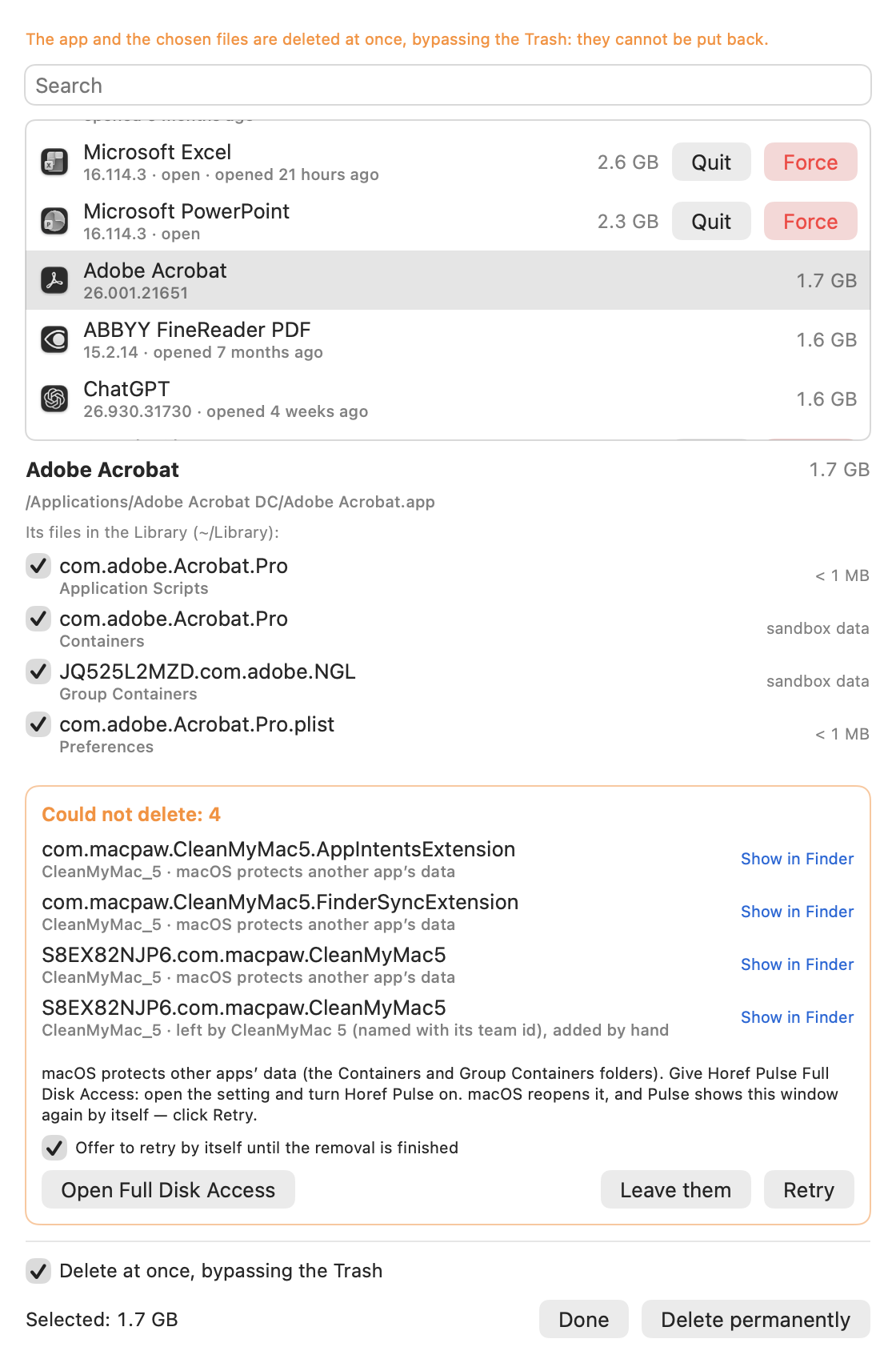
- Find the app: scroll or type in Search, and click it.
- Horef Pulse lists what the app left in your Library: settings, caches, support data, logs and sandbox data. Files of other apps are never listed, even if they share data with this one (for example Word, Excel and PowerPoint share Office data). A folder found only by a similar name is not checked: look at it and decide.
- Click Move to Trash. If the app is open, Horef Pulse quits it first; it may ask about unsaved documents. If it does not quit or hangs, tick Force quit: Horef Pulse then stops the app and its helpers at once, and unsaved documents are lost. To close an open app without removing it, use the Quit and Force buttons next to it in the list.
The app and the checked files go to the Trash, so Put Back in Finder still works until you empty it; the space is freed then. An app installed by an installer package belongs to the system: Finder moves it and macOS asks for your administrator password. System-wide parts some apps install in /Library (background helpers, drivers) are left alone: use the developer’s own uninstaller for those.
Delete at once. Tick Delete at once, bypassing the Trash to free the space right away. The button becomes Delete permanently and asks once more: the app and its files cannot be put back. Horef Pulse remembers this choice. An app that belongs to the system still goes to the Trash.
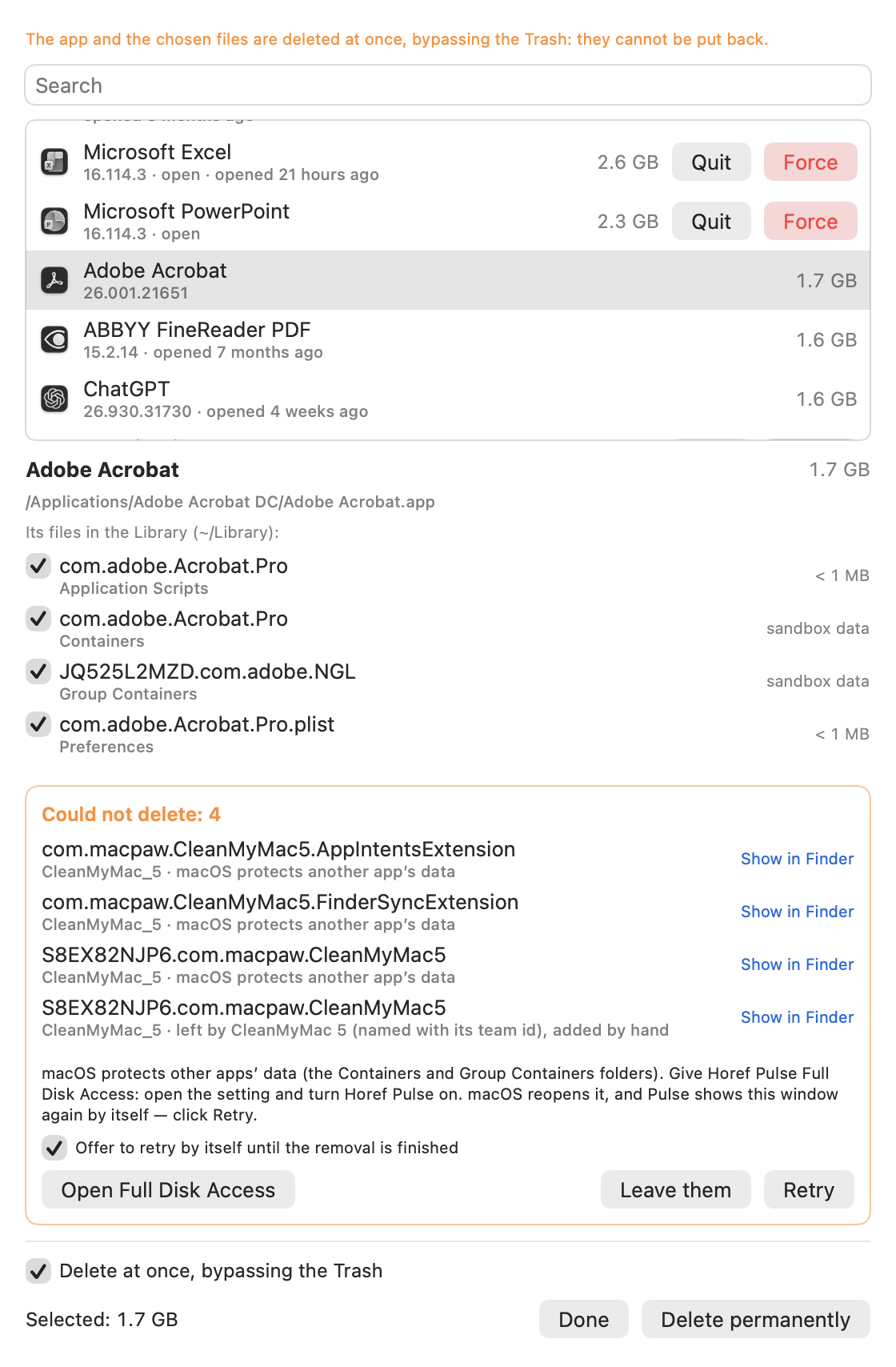
When something cannot be deleted. The window lists every file that stayed, with the reason and Show in Finder. Most often it is another app’s container in Containers or Group Containers: macOS protects those. Click Open Full Disk Access and turn Horef Pulse on; macOS reopens it, and Horef Pulse opens this window again by itself — click Retry. While a removal is unfinished, Horef Pulse offers the retry at every launch and as soon as it can reach the files (untick Offer to retry by itself to stop that). The list is kept until the files are gone or you click Leave them.
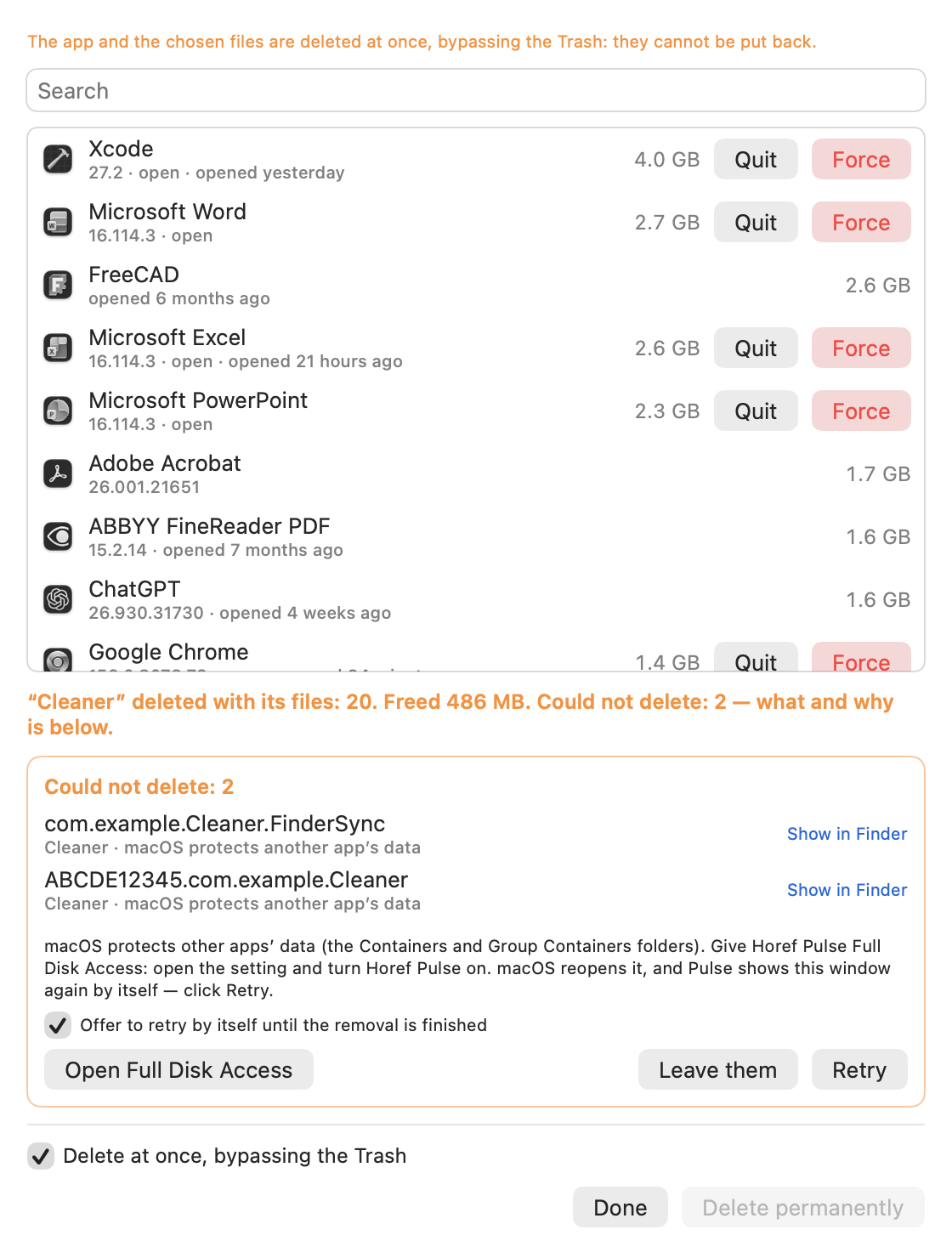
When an AI asks. An AI agent can see the list and ask you to remove an app, with its reason, but it never removes anything itself. Its request opens this window with the app chosen; click Done to keep it. Force quit and Delete at once are only ever your choice: an AI request never ticks them.
11. Updates
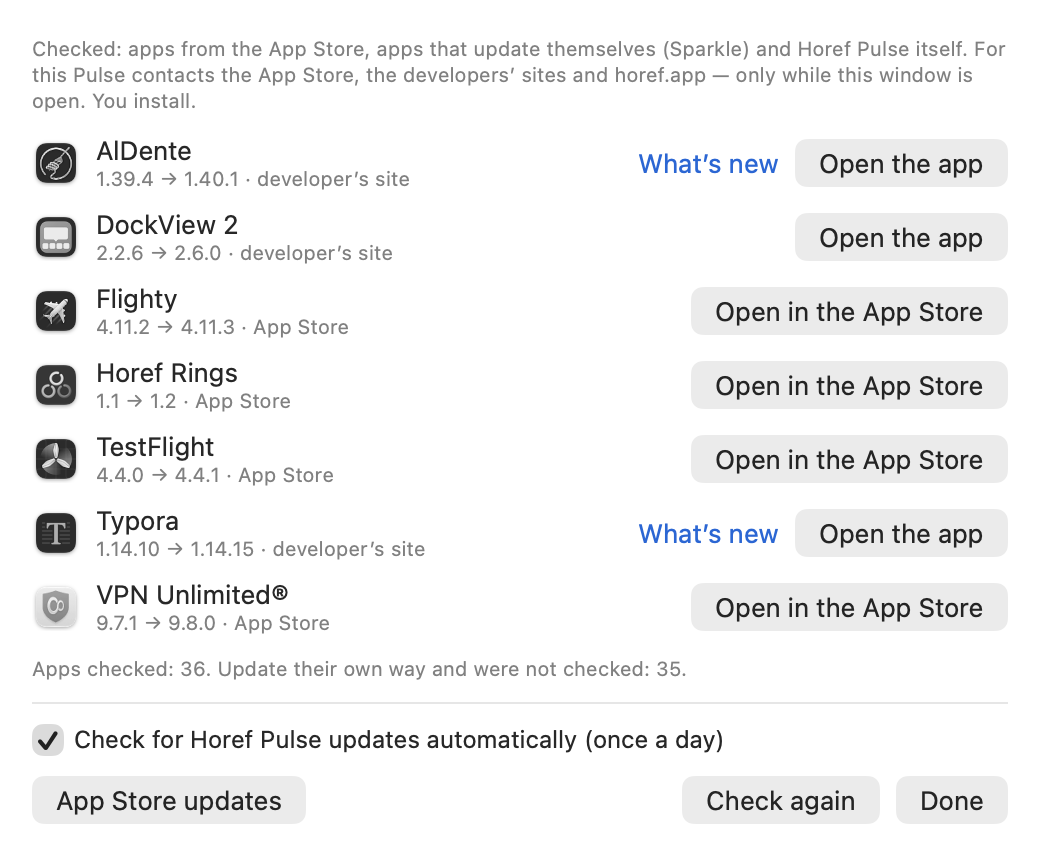
Open Services → App updates… (also on the Apps screen). Horef Pulse checks three kinds of apps:
- Mac App Store apps — against the App Store. Open in the App Store shows the app’s page; App Store updates opens the list of all App Store updates.
- Apps that update themselves with the Sparkle updater (Telegram, Typora, AlDente and many others) — against the developer’s update feed. Open the app starts it: such apps update at launch or from their Check for Updates menu item. What’s new opens the developer’s release notes.
- Horef Pulse itself — against horef.app.
Apps with an updater of their own (Chrome, Microsoft Office, Adobe…) are only counted. When a newer version needs a newer macOS, the window says so. Horef Pulse downloads and installs nothing for other apps: you update them in the App Store or in the app.
Updating Horef Pulse. When a newer version is out, the menu says Horef Pulse X is available. Click Install…, then Install and relaunch. Horef Pulse downloads the new version from horef.app and checks that its SHA-256 matches the one published there, that it is Horef Pulse signed by its developer and that Apple notarized it; then it quits, replaces itself and starts again. If any check fails, nothing is replaced. This works for the copy in Applications.
What goes over the network. Once a day Horef Pulse reads its version file on horef.app; untick Check for Horef Pulse updates automatically in the App updates window to stop that. Other apps are checked only while the window is open: Pulse asks the App Store about each App Store app by its bundle ID and reads the update feeds the other apps name. Nothing else about your Mac is sent.
12. System information
- CPU and GPU temperature — average and hottest sensor, GPU load. On Apple silicon 90–105 °C under full load is normal; macOS slows the chip down before it gets dangerous.
- Power — the whole Mac in watts, and the power adapter.
- Battery — charge, health (capacity compared with new), cycle count, time left.
- Network — every active connection (Wi-Fi, Ethernet, iPhone USB, Thunderbolt, VPN) with its speed — for Wi-Fi the current rate, standard (Wi-Fi 6…), band and signal — and its own traffic; “primary” marks the one macOS uses when there are several.
- Disk — current read and write speed.
- Uptime, model and chip.
- Fans — speed and range. A MacBook Air has no fan: the menu says No fan — passive cooling.
13. Desktop widgets
Right-click the desktop, choose Edit Widgets…, find Horef Pulse and add a small, medium or large widget: the level and health, CPU, memory and temperature, your disks including attached ones, and (large) the heaviest apps and the network connection. macOS refreshes widgets every few minutes; the time of the numbers is shown, live numbers stay in the menu.
14. Fan control (beta)
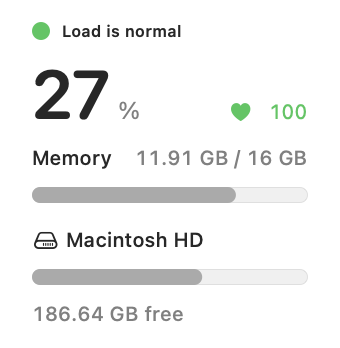
On a MacBook Pro, Mac mini, Mac Studio or Mac Pro you can choose Auto, Boost or Maximum. The screenshots below show sample numbers of a Mac with two fans.
- In the menu, under the fans, click Enable fan control (beta)…

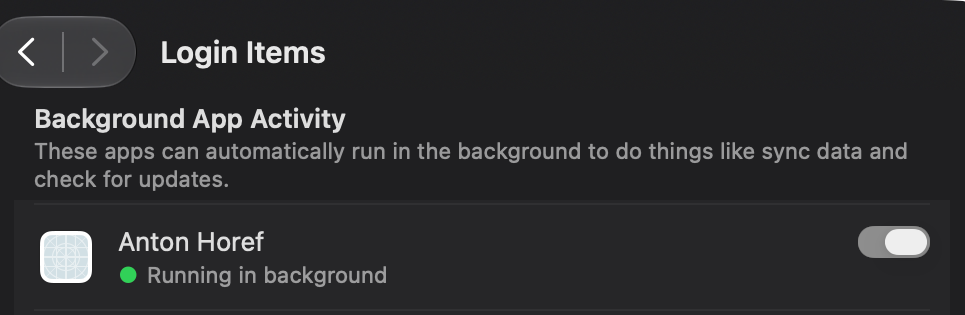
- macOS asks you to allow a background item, and Horef Pulse opens System Settings → General → Login Items. If it does not, click Open Login Items.

- Under Allow in the Background (on newer macOS: Background App Activity) turn on the item named Anton Horef, the developer of Horef Pulse. Enter your password if asked.
- Back in the menu, the presets appear. Auto is macOS’s own control; Horef Pulse always starts in Auto.

- Choose Boost (about 60% between the fan’s minimum and maximum) or Maximum. The fans show manual and the speed rises within a few seconds.

Safety. The speed is never set below the fan’s minimum, so a fan cannot be stopped. The fans go back to Auto when you quit Horef Pulse, when it stops answering for 30 seconds, when the Mac gets hot and after a restart. After sleep the chosen mode is applied again. AI agents can read the fans but cannot change them.
Why beta. Horef Pulse writes to the Mac’s system management controller (SMC) the same way other fan utilities do, but has been tested on few Mac models so far. On any failure the fans return to Auto. If something looks wrong, choose Auto and email us your Mac model.
15. Terminal
Horef Pulse has its own terminal. Its sessions run in a small server on your Mac, not in the window, so a session keeps running when you close the window or quit Horef Pulse, and you can open it again later, also from your iPhone.
- Open it with Services → New Terminal in the menu. While a terminal window is in front, the menu bar has the terminal menus; ⌘N opens another window and ⌘T a tab.
- ⌘D splits the pane side by side, ⌘⇧D one above the other; ⌘⌥ + an arrow moves between panes. Broadcast Input to All Panes (⌘⌥I) types into all of them at once.
- Closing a window asks whether to end its sessions or keep them running. Detach (⌃⌘D) keeps them running at once. Sessions without a window are under Services → Background sessions; a click opens one again with what it showed.
- After an update or a restart of the Mac your terminals come back: the session server is stopped for the update, then every session starts again in the same folder with what it showed, the command that ran in it runs again (Claude Code continues the same conversation), and the terminal windows, tabs and split panes open again. Every command runs again, so a one-off one (a deploy) would run a second time. While iPhone access is on, Horef Pulse also starts the session server when it is not running.
- Shell integration (zsh and bash, on by default, your .zshrc and .bashrc are not changed): ⌘↑ / ⌘↓ jump between commands, ⌘⇧A copies the output of the last command, a notification tells you when a command that ran 10 seconds or more ends while the window is not in front, and new panes open in the same folder.
- Terminal Settings… (⌘,): profiles with font, colours (265 schemes, import and export of iTerm2, Ghostty, kitty and Warp files, another scheme for Light mode if you like), cursor, Option as Meta, scrollback, start folder or command, a badge and triggers (a line that matches a pattern can notify you, play a sound, bounce the icon or type text); a window that drops down on a hotkey.
- View → Colour Scheme: the schemes you chose lately and All Schemes… (⌥⌘K) with a search, a Dark/Light filter and a sample. The terminal in front shows the selected scheme at once; Apply keeps it for the profile (always, in Dark mode or in Light mode) or for that window only, Cancel puts the old colours back. Each scheme names its author and licence. Right-click a pane for Copy, Paste, splits and colours.
- Command Palette (⇧⌘P, also under View): type a few letters of any command, colour scheme, profile or background session and press Return. The letters need not be next to each other, and what you use often comes first. The shell commands are in the Shell menu, second after the app menu; View → Hotkey Window shows the drop-down window.
- ⌘-click opens links and file paths. ⌘F finds text, ⌘K clears the buffer, Paste History… (⌘⇧H) shows what you pasted (kept only while Horef Pulse runs). Secure Keyboard Entry is on while a terminal window is in front.
- Tools that send iTerm2's escape codes (marks, badges, the current folder, attention requests, inline images with imgcat) work here too.
- From the command line:
hofpulse termlists the sessions,hofpulse term newstarts one in the background,hofpulse term send ID TEXTtypes into it,hofpulse term kill IDends it.hofpulse term externallists the sessions of iTerm2 and Terminal, reads them and types into them (macOS asks you once per app to allow it).
16. Access from your iPhone
With the Horef Pulse app for iPhone you see your Mac's load, quit apps, stop what AI agents started, free up space, uninstall apps, check for updates and work in its terminal sessions, at home over Wi-Fi and away through horef.app. The iPhone app is being tested now (TestFlight) and comes to the App Store next.
- On the Mac: Services → Access from iPhone and Mac…, turn Access from iPhone and Mac on (it is off until you do), click Pair a New Device… A QR code with a one-time code appears; it works once, for 10 minutes.
- On the iPhone: open Horef Pulse, tap Pair with Mac and point the camera at the code. The iPhone appears under Paired devices on the Mac.
- The app has four tabs: Mac (load, heaviest apps: swipe to Quit or Force Quit, processes started by AI), Terminal (the Mac's sessions with Esc, Ctrl, Tab and arrows above the keyboard; + starts a new one; iTerm2 and Terminal sessions are listed under Other terminals on the Mac, their text and a line to type), Services (Cleanup, Disks, App updates, Uninstall apps) and Log. Widgets for the Home Screen and the Lock Screen show the Mac as the app last saw it.
- Security. The iPhone and the Mac encrypt everything end to end (Noise protocol, the keys never leave the devices), and the Mac lets in only devices you paired. Away from home the connection goes through horef.app, which passes the encrypted data and cannot read it. The app can be locked with Face ID.
- Notifications. Tap the bell on the Mac tab and turn on Notifications from the Mac: you hear when the Mac is overloaded, when its disk runs low and when a terminal command that ran longer than you chose (1 to 60 minutes) ends; tapping that one opens its session. The Mac encrypts each notification with your iPhone's key; horef.app and Apple deliver it but cannot read it. They arrive while iPhone Access is on and Horef Pulse runs on the Mac; a bell next to the iPhone on the Mac shows they are on, and
hofpulse remote notify-testsends a test one. - To cut a device off, click Revoke next to it on the Mac; to stop it all, turn Access from iPhone and Mac off.
- Uninstall from the iPhone moves the app and its files to the Trash on the Mac, so you can put them back; cleanup checks everything again on the Mac before it removes anything. Updates are installed on the Mac.
My Macs
With Horef Pulse on several Macs, one window shows them all: Services → My Macs… lists this Mac and the Macs you added, each with a dot for its load; All Macs puts them side by side as cards (load, CPU, memory, disk, health, temperature, the heaviest app), a click opens one Mac with the reasons, its apps (Quit, Force Quit) and what AI agents run (Stop).
- On the other Mac: Services → Access from iPhone and Mac…, turn access on, click Pair a New Device… and Copy Link for Another Mac.
- On this Mac: My Macs → + (Add Mac…). With the same Apple ID the copied link is already there; otherwise paste it from a message to yourself. The link works once, for 10 minutes.
The Macs talk like the iPhone does: directly on the same network, through horef.app when apart, encrypted end to end. The links are open only while My Macs is open; Revoke on the other Mac cuts this one off.
17. Troubleshooting
“Mac is overloaded” although the CPU is not full
Memory pressure, swap, heat and a long queue of waiting processes slow a Mac down as much as a busy CPU. The status line says which. A hung iOS Simulator is a common cause: its processes get stuck in the kernel and the whole Mac stalls. Force quit Simulator in Horef Pulse (from the iPhone too) and wait a minute.
Claude does not see the Horef Pulse tools
Start a new Claude Code session after connecting. If it still does not work, click Disconnect, then Connect again, and check claude mcp list.
“The fan helper does not answer”

Click Reinstall the helper. If macOS asks, allow it again in Login Items. This can happen after installing a test build or after a macOS update.
No fan controls
Your Mac has no fan (MacBook Air), or fan control is not enabled yet: see section 14.
Temperatures look high
Under a build or a game the hottest CPU sensor of an Apple silicon Mac reaches 95–105 °C; that is by design. When macOS itself reports overheating, the status line says overheating, CPU throttled and the AI is told to slow down.
18. Remove Horef Pulse
- In the menu click Disconnect. Horef Pulse is removed from the Claude Code and Claude Desktop settings.
- If you enabled fan control, choose Auto and turn off Anton Horef in System Settings → General → Login Items.
- Click Quit Horef Pulse and move the app from Applications to the Trash.
- Optional: delete ~/Library/Application Support/HorefPulse and ~/.local/bin/hofpulse.